Customer Requests
The Customer Requests screen is used to view and manage requests created by customers, such as complaints, suggestions, or other types of requests through the Customer Portal.
When a customer creates a request using the Add Request screen in the portal, the system automatically generates a support ticket that the customer can track through the Support Tickets screen in the portal to view the request status and responses provided by the responsible departments within the company.
This screen helps improve communication between customers and the customer service team while ensuring faster follow-up and issue resolution.
Open Tickets
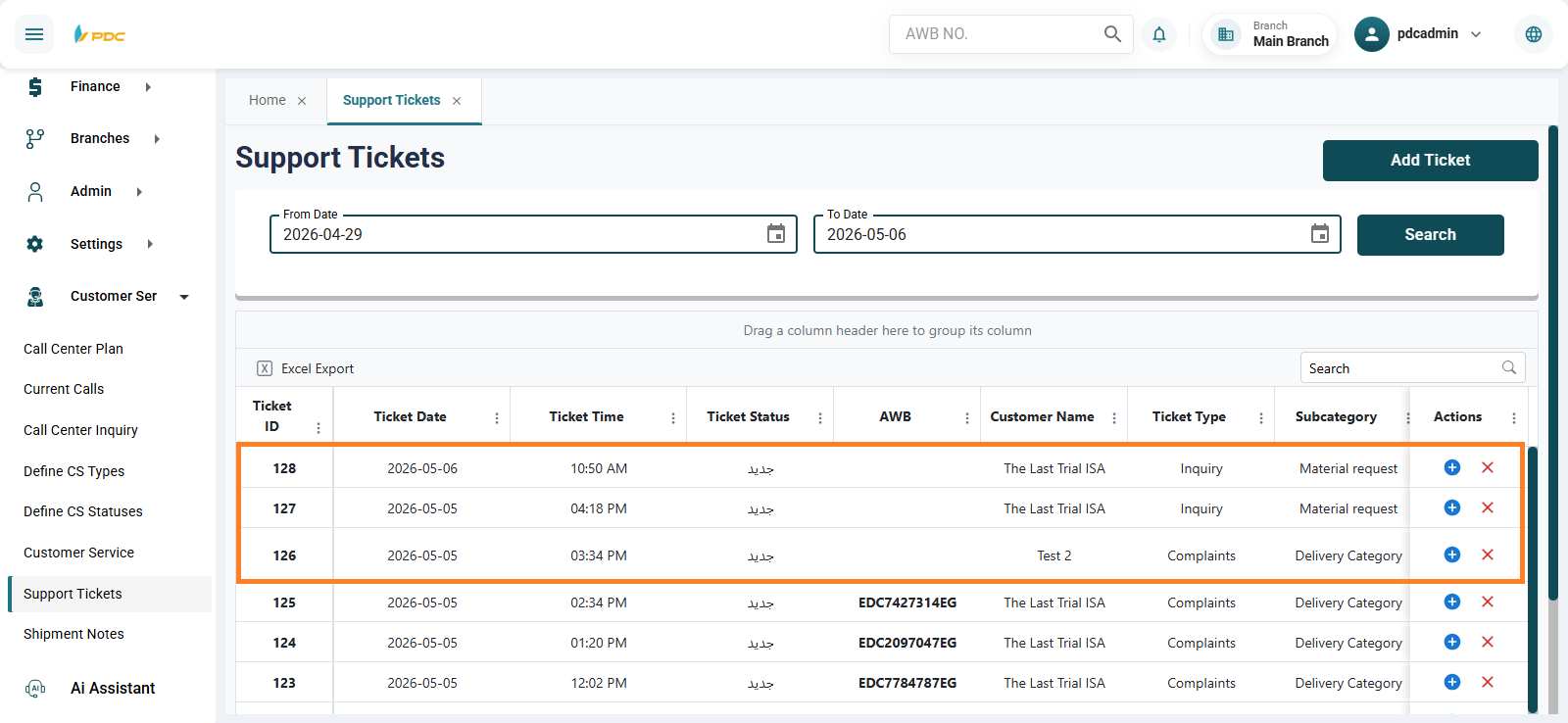
When opening the screen, all open tickets appear for customer service agents so they can start reviewing and handling them.
Customer Chat
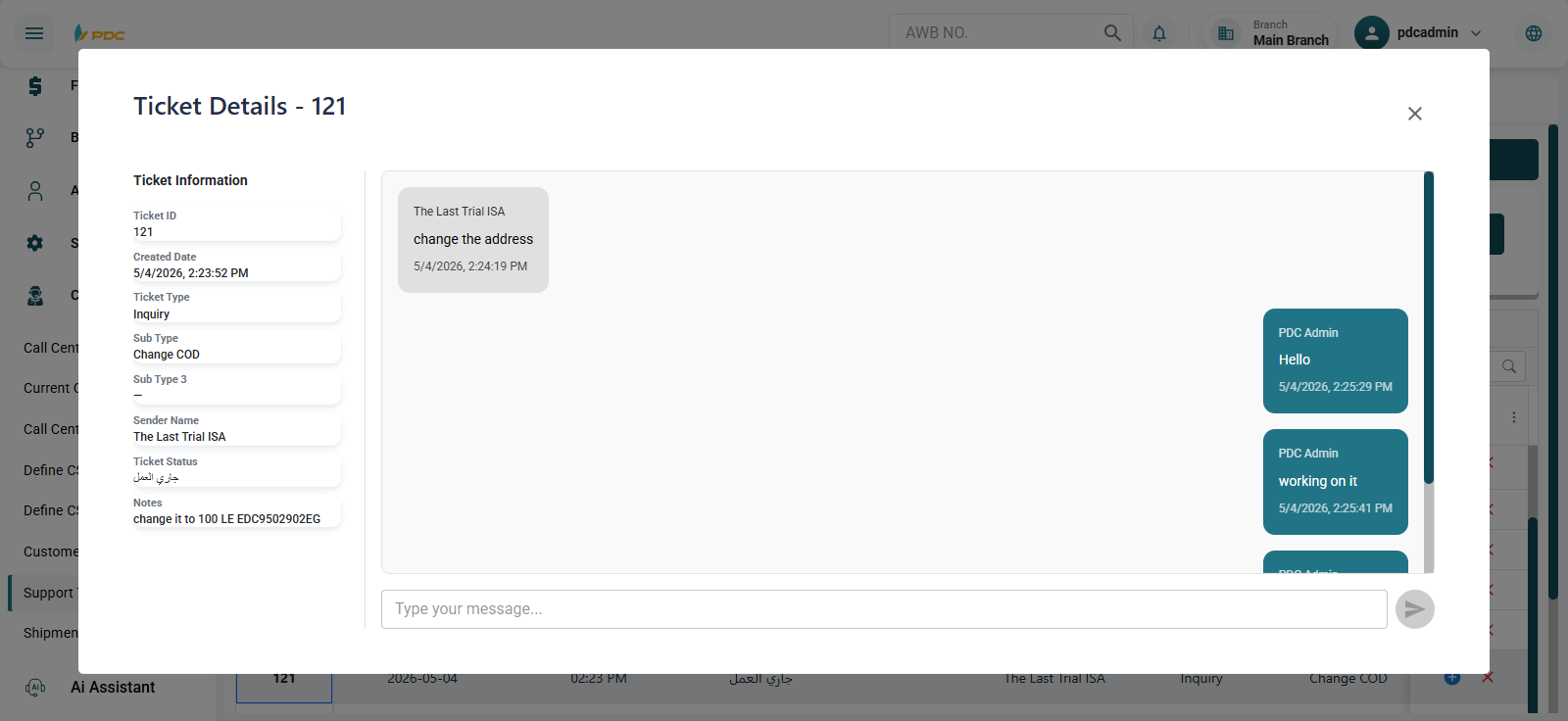
When clicking on the ticket number displayed on the right side of the screen:
- A chat window opens between the customer service agent and the customer.
- This allows direct and efficient communication between both parties.
Available Actions
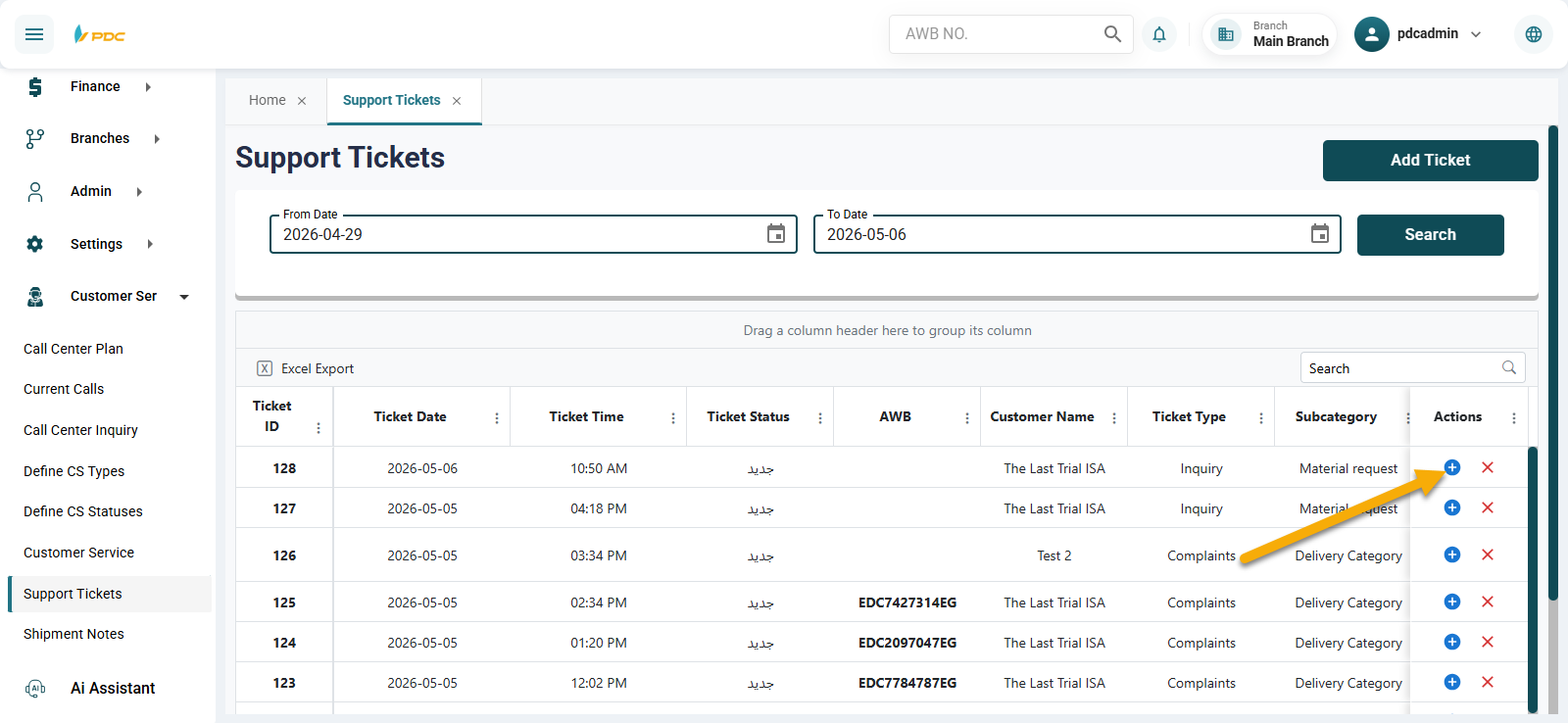
The Actions column contains several options for managing tickets:
1. Close Ticket
- Clicking the X button closes the ticket and marks the request as completed.
2. Add or View Notes
-
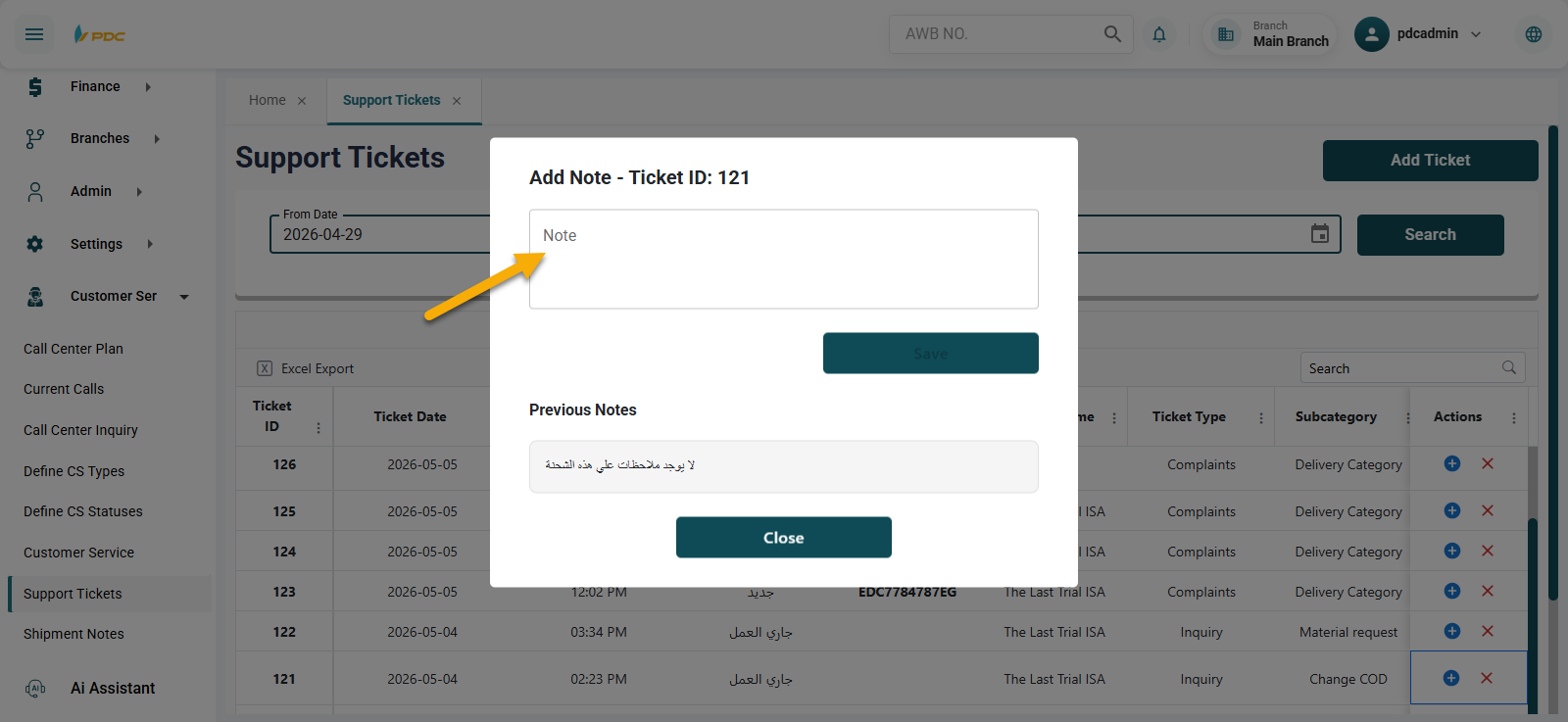
Clicking the + button allows the user to:
- Add a new note to the ticket
- View previous notes related to the same ticket
This feature helps the customer service team to:
- Track all actions taken on the ticket
- Review previous communication details
- Improve collaboration between agents handling the same request
Creating a Complaint for a Customer
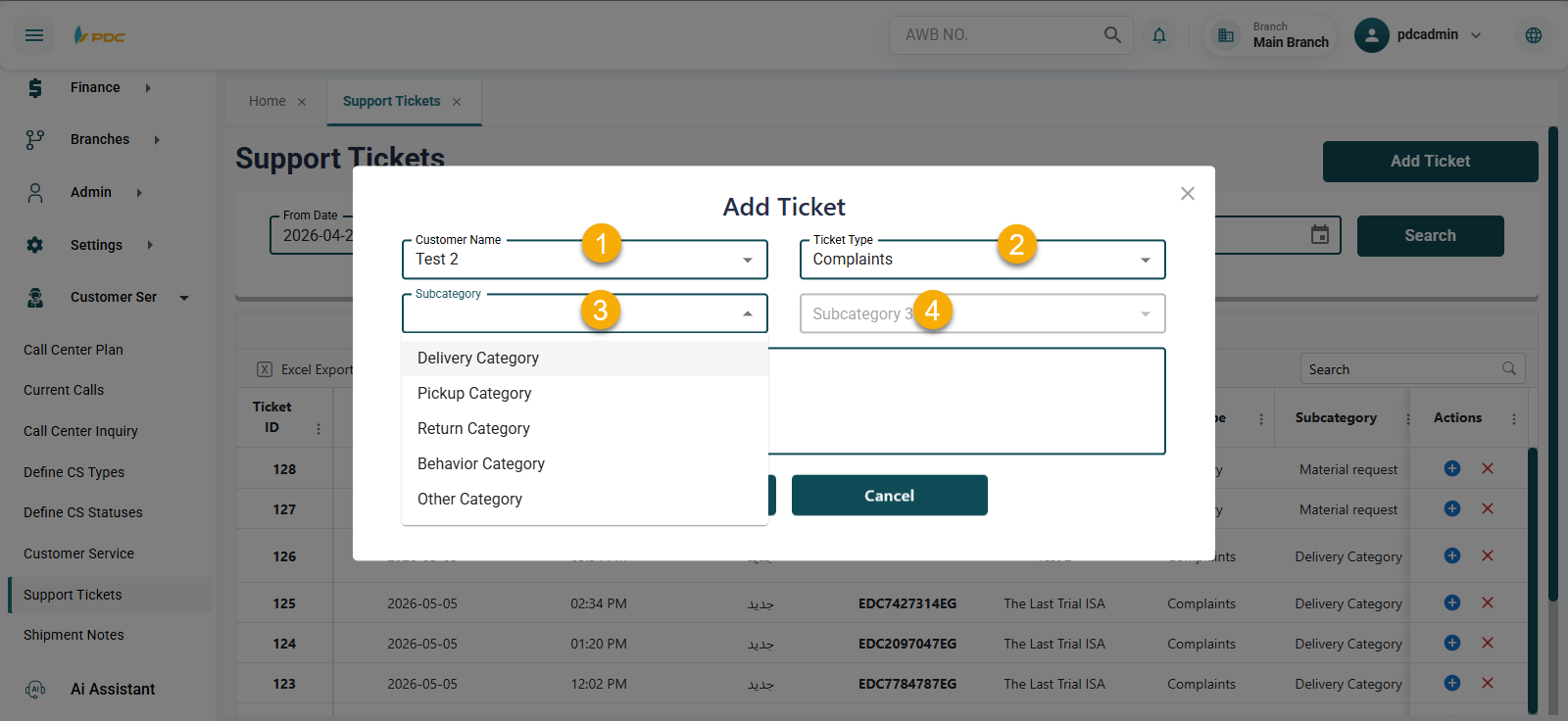
Customer service agents can also create complaints directly from the system as an alternative to customers creating them through the portal.
How to Use
-
Click the Add Complaint button.
-
Select:
- The customer
- Complaint type
- Complaint category
-
Click Save to create the ticket.
This screen helps organize and manage customer requests efficiently while providing a clear and fast communication channel between the customer and the company.